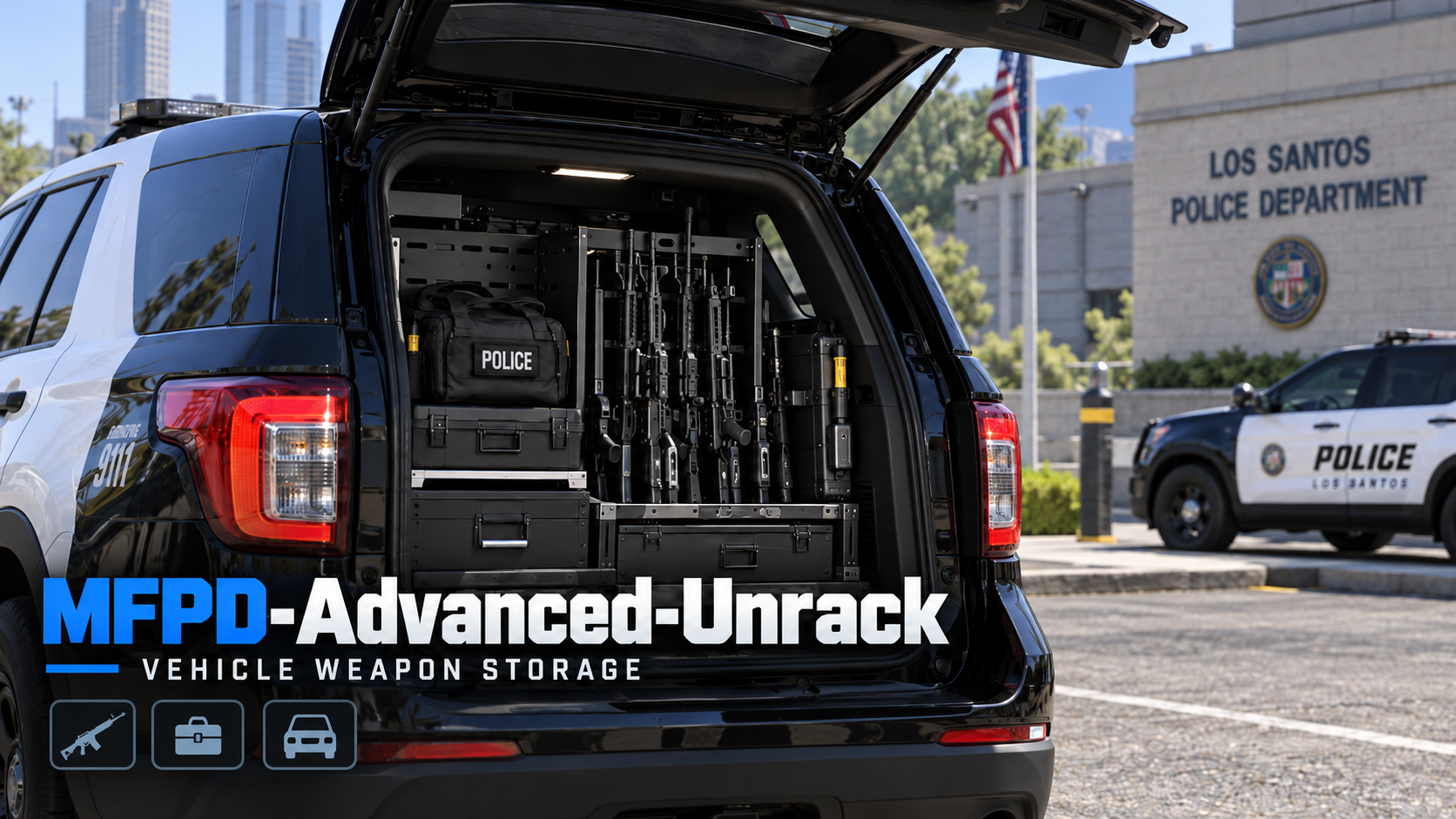
MFPD / FIVEM POLICE EQUIPMENT
MFPD-Advanced-Unrack
VEHICLE WEAPON STORAGE • VANILLA & ADD-ON WEAPON SUPPORT
Professional weapon storage for every patrol vehicle.
Equip and return firearms and tactical equipment through an interactive vehicle storage system. MFPD-Advanced-Unrack combines configurable access points, streamlined weapon menus, handling animations and spatial rack/unrack audio in one practical solution for police roleplay servers.
16 preconfigured GTA V weapons and equipment items, with support for additional vanilla and custom add-on weapons.
Includes organized search and categories, automatic weapon registration, vehicle-specific interaction points, rack/unrack sounds and an in-game offset editor.
THE WEAPON STORAGE SYSTEM
A complete rack and unrack experience.
01 VEHICLE ACCESS
Interactive weapon compartments
Access the weapon storage menu directly from an eligible vehicle using ox_target or qb-target. Position interactions at configured doors, the trunk, hood or custom points suited to individual vehicle models.
- Global vehicle interaction and configurable bone-based targeting modes.
- Door-open checks for supported vehicle compartments.
- Adjustable targeting distances, permitted vehicle classes and optional model-based access rules.
- Aim-based access for supported open-air vehicles without conventional doors.
02 WEAPON HANDLING
Retrieve, equip and return weapons
Select a weapon to open its contextual actions. Retrieve equipment from the vehicle, return weapons already carried or use the dedicated action to store a configured weapon currently equipped by the officer.
- Individual retrieve and store actions with loadout-aware availability.
- Configurable progress bar integration and GTA V handling animations.
- Included rack and unrack audio audible to nearby players.
- Configurable ammunition and supported weapon attachments.
03 WEAPON SELECTION
Searchable, categorized equipment menu
A structured ox_lib interface keeps the complete weapon selection under one vehicle interaction. Browse by category, use the search field or move through paginated results without crowding the target menu.
- Search by displayed weapon name or spawn identifier.
- Automatic category assignment based on registered weapon types.
- Configurable results per page, menu labels and icons.
- Support for additional custom categories when required.
A familiar patrol workflow
OPEN COMPARTMENT → ACCESS STORAGE → SELECT EQUIPMENT → RETRIEVE OR RETURN
Designed for vehicle-based equipment handling, from everyday patrol firearms to department-specific weapon packs.
READY-TO-USE LOADOUT
16 GTA V weapons and equipment items included in the default configuration.
Pistols
Pistol · Pistol Mk II · Combat Pistol
Rifles
Carbine Rifle · Carbine Rifle Mk II
Shotguns
Pump Shotgun · Pump Shotgun Mk II · Sawed-Off Shotgun
Submachine Guns
SMG
Specialty & Tools
Stun Gun · Nightstick · Flashlight · Flare · Tear Gas · Petrol Can · Fire Extinguisher
This default loadout uses stock GTA V / GTA Online weapon assets. The weapon catalog is fully configurable and can be expanded with compatible third-party add-on weapons.
VANILLA & ADD-ON COMPATIBILITY
Add custom weapons without rebuilding the menu.
Automatic weapon registration
Both standard GTA V weapons and properly installed add-on weapon packs can be registered through a single weapon list in config.lua. The system automatically creates retrieve and return actions, includes the weapon in search results and generates a display name and category wherever possible.
Weapon identifiers do not require separate model, action, label or category entries. An optional override is available for custom weapon names, ammunition, icons, attachments and department-specific grouping.
How to add an add-on weapon
- Install the add-on weapon pack on the FiveM server and ensure that the weapon is properly registered and available in-game.
- Open
config.luain MFPD-Advanced-Unrack and locateConfig.Weapons. - Add the weapon's spawn identifier as a new entry. For example:
Start the add-on weapon resource before MFPD-Advanced-Unrack, then restart MFPD-Advanced-Unrack to load the updated weapon list.
The identifier above is an example. Use the exact spawn name supplied by the weapon pack creator. The WEAPON_ prefix may be omitted in this configuration.
Optional settings for custom weapons
For weapons with nonstandard in-game names or special equipment requirements, additional settings can be supplied directly in the same entry:
Compatible weapon components may also be configured using the optional components field. Custom attachments must exist in the installed weapon pack and be compatible with the weapon.
Compatibility note: Add-on weapon models, weapon metadata and third-party weapon packs are not supplied with this product. QBCore servers may additionally require compatible weapon item definitions and inventory integration.
VEHICLE-SPECIFIC PLACEMENT
Position storage access where it belongs.
Integrated offset editor
The in-game /offset editor provides free-camera positioning for vehicle model-specific interaction points. Set a suitable storage position, save it and use the same placement whenever that vehicle model is used.
- Editable placement for whitelisted vehicle models.
- Saved positions persisted through
offsets.jsonand shared with connected clients. - Adjustable free-camera movement and field of view.
- Optional ACE permission for offset editor access.
Editor controls: E to save • Backspace to cancel
MODEL-SPECIFIC WEAPON ACCESS
The right equipment for every vehicle.
Customize which patrol vehicles have access to particular firearms and equipment. Use the default vehicle-class permissions, restrict the entire weapon catalog to selected vehicle models or assign individual weapon lists to different vehicles.
- Global model restrictions: limit the complete weapon catalog to an approved list of vehicle models.
- Per-weapon permissions: offer specific weapons only in selected cruisers, SUVs, command vehicles or specialist units.
- Automatic menu filtering: each vehicle shows only the weapons authorized for that model, including category and search results.
- Built-in model recognition: accepts vehicle spawn names, signed or unsigned model hashes, and hexadecimal hashes, including add-on vehicles.
- Class-based fallback: leave the default setting unchanged to continue using configured GTA vehicle classes.
Restrict all weapons to selected vehicles:
Restrict a single weapon:
Vehicle names are matched against the actual in-game model. Custom models do not have to use GTA's Emergency vehicle class when individually whitelisted. Model lists are optional and do not affect the standard one-line weapon setup.
SERVER CONFIGURATION
Flexible options for different police fleets.
- Weapons: single-list registration for vanilla and add-on weapons, with optional labels, categories, ammo, components and per-weapon vehicle model permissions.
- Menus: configurable titles, target labels, icons, search and pagination settings.
- Targeting: select global or door/bone-based interactions, set proximity and restrict access by vehicle class or model whitelist.
- Vehicle positions: configure supported bones, custom model offsets and editor settings.
- Frameworks: choose Standalone or QBCore; configure supported QBCore jobs and minimum grades.
- Handling: configurable ammo quantities and supported weapon attachment configurations.
- Access: optional ACE restriction for the placement editor.
Compatibility & requirements
Frameworks: Standalone and QBCore.
Target systems: ox_target or qb-target.
Menu dependency: ox_lib.
Progress system: compatible mythic_progbar for the default Standalone mode, or QBCore progress integration when configured.
Included: full MFPD-Advanced-Unrack resource, 16 default weapon/equipment entries, editable configuration, offset editor, included rack/unrack audio and setup instructions.
Additional weapons: supported through separately installed weapon resources. Third-party weapon packs and associated inventory items are not included.
Installation
- Place the MFPD-Advanced-Unrack folder in the server's
resourcesdirectory. - Install and start ox_lib, the chosen target system and the configured progress system.
- Set the framework, target mode, weapon selection and vehicle access rules in
config.lua. - For custom add-on weapons, install their packs and start them before this resource.
- Add
ensure MFPD-Advanced-Unracktoserver.cfg, after dependencies and applicable weapon packs. - Approach an eligible vehicle and open Weapon Storage using the target system.
MFPD-ADVANCED-UNRACK • VEHICLE WEAPON STORAGE • VANILLA & ADD-ON READY